Configure the basics and keep things on track
Previously, I mentioned why you should consider Edge. There are some easy settings you can apply with Microsoft Intune to make Edge a breeze for your end users while improving basic security hygiene at the same time - a win-win! We can also block selected alternative browsers using AppLocker.
Let’s not be afraid to enforce some order
This Settings Catalog profile will configure the minimum to make Edge a seamless experience for your staff. For ease, I’ve uploaded a Settings Catalog template you can import into Intune. It contains all the settings below, but you should still check your existing policies for conflicts before deployment. The template doesn’t include the AppLocker settings.
For those wanting to learn a little and do it manually, read on…
Create the profile
- In the Microsoft Intune admin centre, go to Devices > Configuration and create a new policy.
- Select Windows 10 and later as the platform and Settings catalog as the profile type.
- Add the settings listed below, then assign the profile to a pilot group before deploying it more widely.
Profiles
Configuring the default profile keeps things clean - your end users can have their bookmarks and history synchronised, and they’ll get fewer sign-in prompts for their Microsoft Entra account. It’s worthwhile disabling the ability to create additional profiles too if your users don’t require them.
| Setting | Recommended value | Policy reference |
|---|---|---|
| Configure whether a user always has a default profile automatically signed in with their work or school account | Enabled | NonRemovableProfileEnabled |
| Enable profile creation from the Identity flyout menu or the Settings page | Disabled | BrowserAddProfileEnabled |
Experience
Here we will remove the first-run experience, disable the sidebar by default, and enable sync. Sync stores your users’ bookmarks, history, and other supported profile data within the Microsoft Edge sync service. This means important user-facing data follows them to a new device or VDI.
I recommend that you do not synchronise passwords unless strictly needed. These should be handled through your organisation’s chosen password manager.
| Setting | Recommended value | Policy reference |
|---|---|---|
| Hide the First-run experience and splash screen | Enabled | HideFirstRunExperience |
| Show Hubs Sidebar | Disabled | HubsSidebarEnabled |
| Force synchronization of browser data and do not show the sync consent prompt | Enabled | ForceSync |
| Disable synchronization of data using Microsoft sync services | Disabled | SyncDisabled |
| Browser sign-in settings | Enabled - Enable browser sign-in | BrowserSignIn |
| Configure the list of types that are excluded from synchronization | Enabled - passwords | SyncTypesListDisabled |
Updates
Everyone’s favourite topic. Hopefully you already have a solid patching procedure in place, ideally fully automated. These policies do not control when an update downloads; they control how long users can defer restarting Edge after an update is pending.
Typically, I would enforce the restart within a few days, though if you are a more reasonable person, I suppose seven days also works. End users will ignore update warnings - naturally, they just want to do their work - so make the restart happen regardless. The period is specified in milliseconds. I would love to know why this is defined in the Chromium engine.
| Setting | Recommended value | Policy reference |
|---|---|---|
| Notify a user that a browser restart is recommended or required for pending updates | Enabled - Required | RelaunchNotification |
| Set the time period for update notifications | Enabled - 604800000 | RelaunchNotificationPeriod |
Tracking
Our last piece of Edge configuration is around tracking. It is a small thing and not particularly important for the main goal of this article, but it is a definite nice-to-have. Balanced is the default value - we are just enforcing it.
| Setting | Recommended value | Policy reference |
|---|---|---|
| Block tracking of users’ web-browsing activity | Enabled - Balanced | TrackingPrevention |
Verifying your configuration
Open edge://policy in the browser, select Reload Policies, and confirm each expected policy reports a status of OK. It should look similar to the image below.
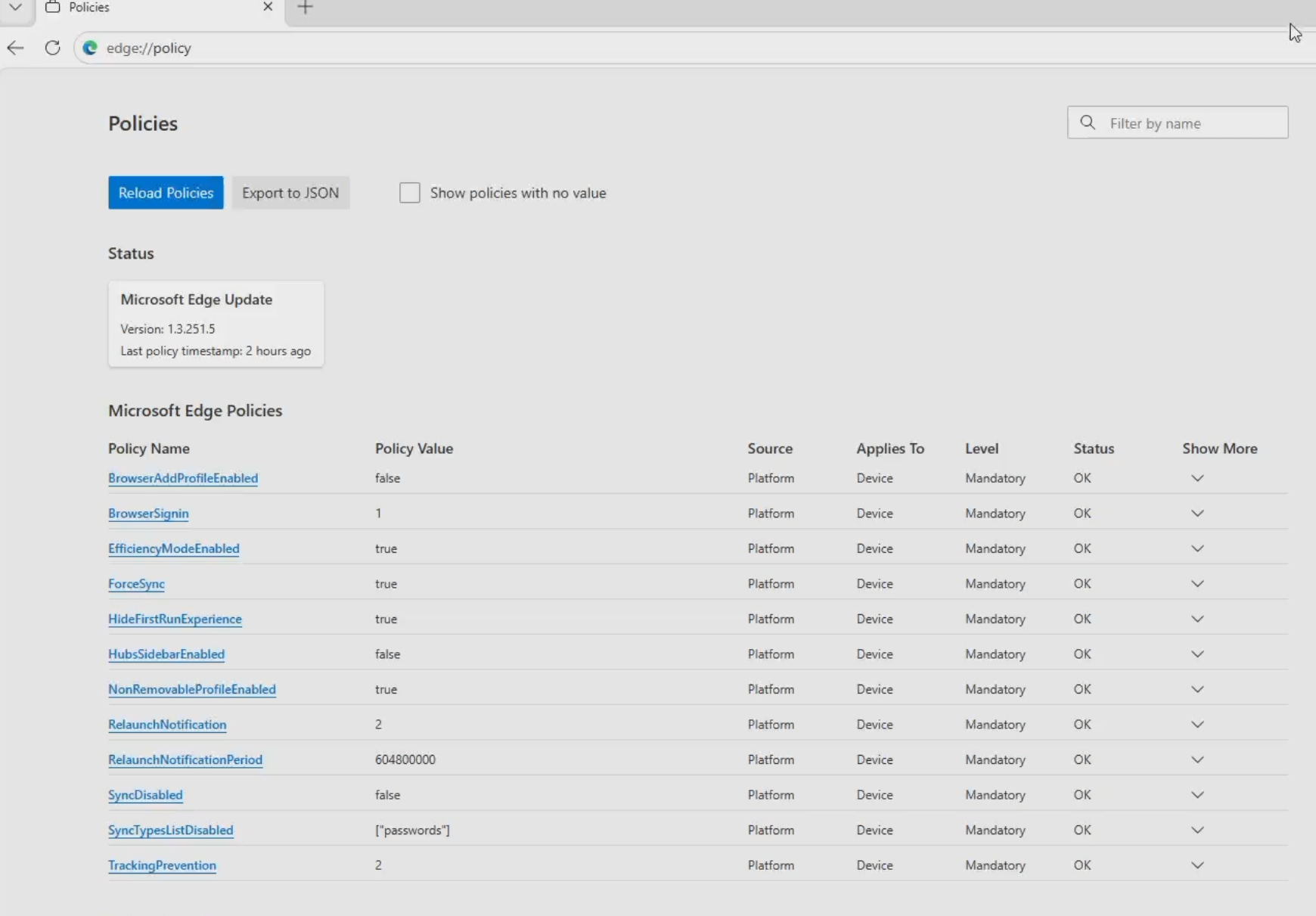
Applied Microsoft Edge policies and their current status.
Block selected alternative browsers
AppLocker
These rules are taken from the Microsoft Edge management service, which runs in Microsoft 365. There’s a slider within the cloud policies that creates this profile in Intune for your tenant. You can also deploy the rules separately.
Create a Custom configuration profile in Intune rather than a Settings Catalog profile. Each setting value is XML, so I have linked to the files in GitHub rather than including them directly here. You’ll need to scroll sideways because of the long URIs. The OMA-URI data type is String (XML).
| Name | Description | OMA-URI | Value |
|---|---|---|---|
| Microsoft Edge management service | Blocks selected alternative browser executables | ./Vendor/MSFT/AppLocker/ApplicationLaunchRestrictions/MicrosoftEdgeManagement1/EXE/Policy | onlyEdgeRuleCollectionExe.xml |
| Microsoft Edge management service | Blocks selected alternative browser Store apps | ./Vendor/MSFT/AppLocker/ApplicationLaunchRestrictions/MicrosoftEdgeManagement2/StoreApps/Policy | onlyEdgeRuleCollectionAppx.xml |
The XML files linked above are static copies and will not receive later changes from Microsoft. Use the Microsoft Edge management service if you want Microsoft to manage the profile. These rules also do not block every browser, only a selection of common alternatives. Test them with a pilot group before deploying them more widely.
Notes
- If your organisation’s security baseline requires browser sync to be disabled, do not enable
ForceSync. Remove it from this profile or document an exception. - The user-overridable recommended form of Show Hubs Sidebar is obsolete and never supported that behaviour. The mandatory setting above remains documented, but test it against the Edge versions in your environment.